

A brand new sending domain has no reputation. To Gmail, Yahoo and Outlook it's a stranger, and strangers who suddenly send 20,000 emails on their first day look exactly like spammers. That's why a new domain can have perfect authentication and still land in the spam folder.
Email domain warm up is the fix. You start small, send only to people who want your mail, and raise the volume step by step while you watch the signals mailbox providers care about. It's slow on purpose. Done well, it takes about four weeks.
One honest caveat before we start. No warm up plan and no software, Sendster included, can guarantee that your mail lands in the inbox. Mailbox providers make that call themselves. A careful warm up gives a new domain its best chance.
This is the plan I follow for self hosted sending, where you run the email software yourself and send through Amazon SES or another SMTP service. I'll use Sendster for the examples because my team at Teknikforce makes it, but the plan works with any self hosted setup.
Why a new domain needs warming up
Mailbox providers judge mail mostly on the reputation of the sending domain and the IP addresses behind it. Reputation is built from history. How many people open your mail, how many delete it unread, how many mark it as spam and how many of your addresses bounce.
A new domain has none of that history. If its first sends are large, go to old addresses and get ignored, the providers learn the wrong thing about you, and it takes weeks to undo.
There's also a newer reason to be careful. Gmail started ramping up enforcement of its sender rules in November 2025. Mail that doesn't meet the requirements can now be rejected outright, not just filtered. Google's FAQ also says new domains face an accelerated enforcement timetable.
The rules you have to meet first
Before a single warm up email goes out, I make sure the domain passes the basic rules. Gmail's sender guidelines are the clearest reference, and Yahoo's requirements are close to the same.
For everyone sending to Gmail, Google asks for SPF or DKIM, valid forward and reverse DNS for your sending IPs, a TLS connection, properly formatted messages and a spam rate below 0.3% in Postmaster Tools.
If you send around 5,000 or more messages a day to personal Gmail accounts, the list gets longer.
- SPF and DKIM both. Not one or the other.
- A DMARC record. A policy of none is the minimum.
- Alignment. The domain in your From address has to match the SPF or DKIM domain.
- One click unsubscribe. Marketing mail needs the one click unsubscribe header and a visible unsubscribe link in the body.
- Fast unsubscribes. Requests must be honored within 48 hours.
- A low spam rate. Google says to stay below 0.1% and never reach 0.3%.
Two details catch people out. Gmail counts all mail from the same primary domain, so mail from news.yourdomain.com and yourdomain.com is added together. And once you've crossed the 5,000 line, you're treated as a bulk sender permanently. Microsoft has similar rules for Outlook.com, Hotmail and Live addresses for senders above 5,000 a day.
I meet the bulk sender rules from day one, even when the list is small.
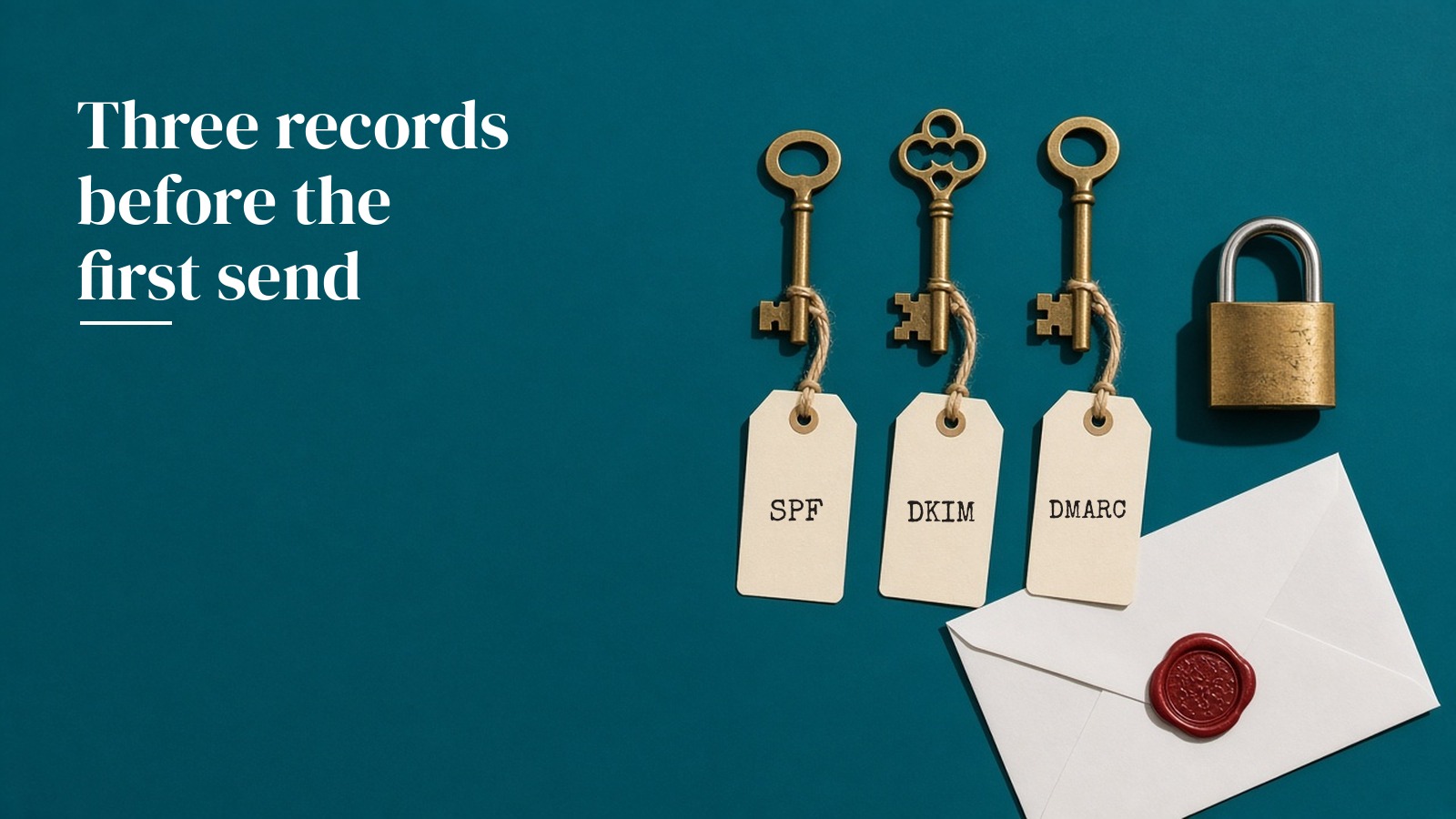
Setting up SPF, DKIM and DMARC
I send marketing mail from a subdomain, such as news.mydomain.com, so that a bad campaign can't drag down the reputation of the main domain that handles invoices and staff email.
SPF. A TXT record that lists the services allowed to send for the domain. If you use Amazon SES with a custom MAIL FROM domain, SES tells you the record to add. Keep one SPF record per domain and stay under the limit of ten DNS lookups.
DKIM. Your sending service gives you DKIM records to publish, three CNAME records in the case of SES Easy DKIM. These sign every message so receivers can confirm it really came from you.
DMARC. A TXT record at _dmarc on the domain. I start with a policy of none and a reporting address, so I get daily reports showing which mail passes and fails. After a few clean weeks I move to quarantine.
Reverse DNS. If you use SES shared IPs or a relay, they handle this. If you run your own server or PowerMTA, set a PTR record that matches the server's hostname.
Then I send a message to a Gmail address, open it, choose "Show original" and check that SPF, DKIM and DMARC all say PASS.
Choosing how to send
Sendster is self hosted, so you choose the delivery route. Its sales page suggests Gmail or Google Workspace or a free SMTP for lists up to 2,000, SMTP services or Amazon SES for 2,000 to 50,000 and PowerMTA or similar for larger volumes. Here's how those routes compare.
| Route | Best for | Cost | Warm up notes |
|---|---|---|---|
| Sendster with Amazon SES | Most self hosted senders from a few thousand to tens of thousands of subscribers | Sendster at $6.99 a month or $67 a year, plus SES at about $0.10 to $0.16 per 1,000 emails | My first pick. SES starts in a sandbox, so request production access first |
| Sendster with Gmail or Google Workspace SMTP | Small lists of a couple of thousand | Your existing Workspace plan | Low daily limits, so it's for small lists only |
| Sendster with an SMTP relay like Mailgun, Brevo or SendGrid | Teams that already use one of those services | Check site | Follow the relay's own warm up guidance too |
| A hosted email platform like Mailchimp | People who don't want to run software | Check site | The platform manages its IPs, but your domain still needs warming |
| Your own mail server or PowerMTA | Very large senders with technical staff | Server and licence costs | You warm up the IPs as well as the domain |
A note on Amazon SES. New accounts start in a sandbox limited to 200 messages per 24 hours and one message per second, and they can only send to verified addresses. Apply for production access a few days before you plan to start, because the warm up can't begin until it's approved.
My day by day warm up plan
This plan assumes a list of about 20,000 opted in subscribers and a goal of mailing the whole list by the end of week four. If your list is smaller, you'll get there sooner. If a day goes badly, I repeat that day's volume instead of moving up.
| Day | Daily volume | Who gets it | What I check |
|---|---|---|---|
| Day 1 | 50 | Colleagues and my most engaged subscribers | Authentication passes and mail lands in the inbox |
| Day 2 | 100 | People who opened or clicked in the last 30 days | Bounces and any spam complaints |
| Day 3 | 200 | The same engaged group | Opens and replies |
| Day 4 | 400 | Engaged in the last 60 days | Bounce rate stays under 2% |
| Day 5 | 600 | Engaged in the last 60 days | Postmaster Tools starts showing data |
| Days 6 and 7 | 800 each | Engaged in the last 90 days | Spam rate stays under 0.1% |
| Week 2 | 1,000 rising to 2,500 | Engaged in the last 90 days | Domain reputation in Postmaster Tools |
| Week 3 | 3,000 rising to 6,000 | Opened in the last six months | Any rise in deferrals or blocks |
| Week 4 | 8,000 rising to the full list | Everyone opted in and verified | Steady inbox placement at full volume |

Days 1 to 3
The first sends are tiny and go to the people most likely to open, click and reply. I include a few colleagues with Gmail, Yahoo and Outlook addresses so I can see where the mail lands, and I ask a simple question in the email because replies are a good signal.
I keep the content plain, with one topic, one link and a recognisable From name.
Days 4 to 7
Now I widen the audience to people engaged in the last 60 to 90 days and roughly double the volume every day or two. The bounce rate should stay well under 2%. If it doesn't, I stop and clean the list before going further.
By around day five, Google Postmaster Tools usually has enough volume to show data. It's free and shows Gmail's own spam rate for your domain.
Week 2
Daily volume climbs from 1,000 to about 2,500, now as regular newsletters to the engaged segment. I watch the domain reputation chart in Postmaster Tools and the spam rate above everything else.
Week 3
I add subscribers who opened in the last six months. This is where problems often show up, because older addresses complain more. If the spam rate creeps toward 0.1%, I hold volume steady for a few days and remove anyone who hasn't opened in a long time.
Week 4
I bring in the rest of the list, but only addresses that are opted in and verified. By the end of the week I'm sending to the full list at the normal schedule.
How Sendster helps with throttling and list hygiene
The most important setting during warm up is how fast mail goes out. Sendster's sales page lists a custom sending rate, so you choose your own delivery speed. I set a slow rate in week one so that a few hundred emails trickle out over several hours rather than in a burst. A steady trickle looks like a normal sender, and it gives you time to stop a campaign if bounces spike.
Mail scheduling helps too. I schedule each day's send for the time my subscribers usually open, so the first signals the providers see are good ones.

Here are the other Sendster features I use in a warm up.
- Built in email verification. Sendster verifies leads as they come in and cleans lists as it imports them, which keeps bounces down before you send.
- Segmentation and tags. I build segments by last open date so each warm up stage goes to the right group.
- Bounce and unsubscribe handling. Sendster removes bounced and unsubscribed addresses, so you don't keep mailing people who asked to leave.
- SMTP and sender round robin. You can spread mail across several SMTP accounts and several senders. During warm up I keep this simple and only rotate across connections that are already set up and authenticated for the domain.
- Delivery, open and click tracking. These show me which segments are responding and which to hold back.
Sendster also includes subject, content and link spinning. I leave those off during warm up, because I want the domain to build a reputation with consistent, recognisable mail.
Signs the warm up is going wrong
These are the warning signs I watch for, and what I do about each.
- Bounces above 2%. Pause and clean the list. Old or purchased addresses are the usual cause.
- Spam rate approaching 0.1%. Hold volume steady, tighten the segment to recent openers and check that the unsubscribe link is easy to find.
- Deferrals or 4xx errors from Gmail. Gmail is slowing you down. Drop back to the previous day's volume and slow the sending rate.
- Opens collapsing at one provider. You may be landing in spam there. Send to your own seed addresses and check placement.
- DMARC reports showing failures. Something is sending as your domain without authentication. Find it before you send more.

What Sendster costs
Sendster costs $6.99 a month or $67 a year. The sales page also lists a 30 day money back guarantee. Check what your plan covers at checkout.
You'll also pay your sending service. With Amazon SES that's roughly $0.10 to $0.16 per 1,000 emails, depending on the pricing plan your account is on.
A few common questions
How long does an email domain warm up take?
About four weeks for a list of around 20,000 subscribers. Smaller lists can reach full volume sooner. If any day shows high bounces or complaints, repeat that day's volume before moving up.
Do I need to warm up a domain if I use Amazon SES?
Yes. SES manages its shared IP addresses, but mailbox providers still judge your domain's reputation. A new domain needs a gradual start no matter which service sends the mail.
Should I send marketing email from a subdomain?
I do, because it keeps marketing reputation separate from the main domain used for invoices and staff email. Remember that Gmail still adds up all mail from the same primary domain when it decides whether you're a bulk sender.
What spam rate is safe for Gmail?
Google says to keep the spam rate in Postmaster Tools below 0.1% and never let it reach 0.3%. Above 0.3%, bulk senders can't get delivery help until the rate stays below that level for seven days in a row.
Will a warm up guarantee my emails reach the inbox?
No. Mailbox providers decide placement for every message. A warm up gives a new domain a fair start, but content, list quality and reader reactions still decide where mail lands.
Can I buy a list and warm it up slowly?
No. Purchased lists cause bounces, spam traps and complaints however slowly you send. Warm up only works with people who opted in.
Does Sendster add one click unsubscribe?
Sendster handles unsubscribes and removes those contacts from your lists. Before your first big send, check a message in Gmail and confirm the unsubscribe option appears next to the sender name, which shows the one click header is working.
Warm up once, then keep the reputation
Meet the rules first, start with your most engaged readers, raise the volume slowly and keep a close eye on bounces and complaints. Then keep sending regularly to people who want your mail.
Nothing guarantees the inbox, but Sendster gives you the pieces a self hosted warm up needs, a custom sending rate, scheduling, verification and segmentation, on your own server with the SMTP of your choice. Get Sendster for $6.99 a month or $67 a year and start your first 50 email day this week.